使用示例
与其用大段文字说明功能,不如直接看实际使用示例。 本页展示了许多真实的使用示例。
最简单的示例
Section titled “最简单的示例”尝试捕获它自身的说明文本。
console2svg capture -- console2svg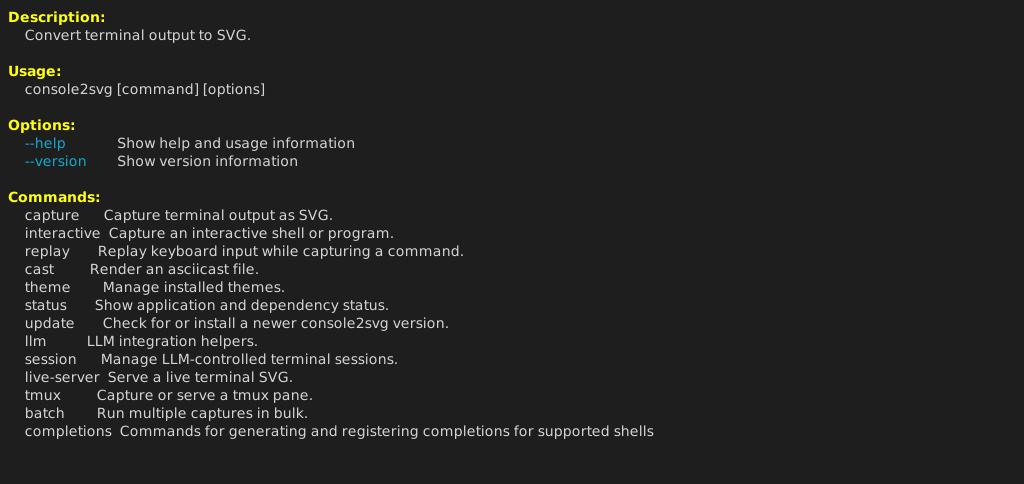
使用类似 macOS 终端的边框,指定宽度,并附上执行命令名。
console2svg capture -w 100 -c -d macos-pc -- fastfetch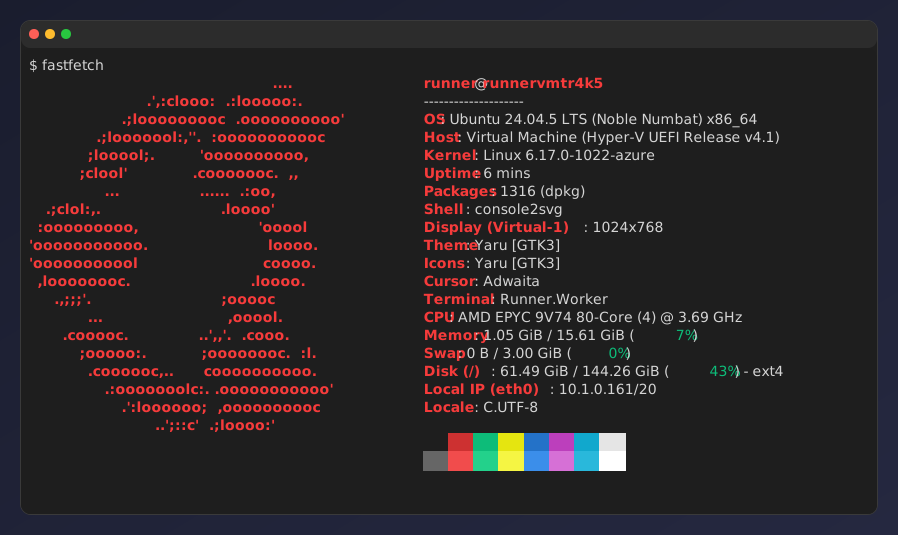
背景和透明度设置
Section titled “背景和透明度设置”可以做得相当美观。
console2svg capture -w 100 -h 10 -c -d macos-pc \ --background "image1.png" --opacity 0.95 \ -- oh-my-logo "console2svg" mint --filled --letter-spacing 0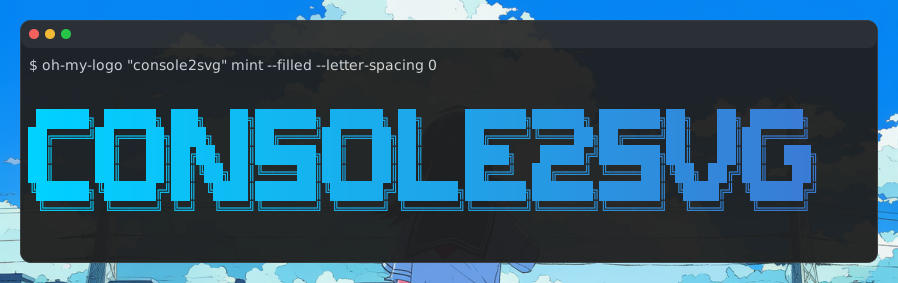
console2svg capture -c -d -v -- sl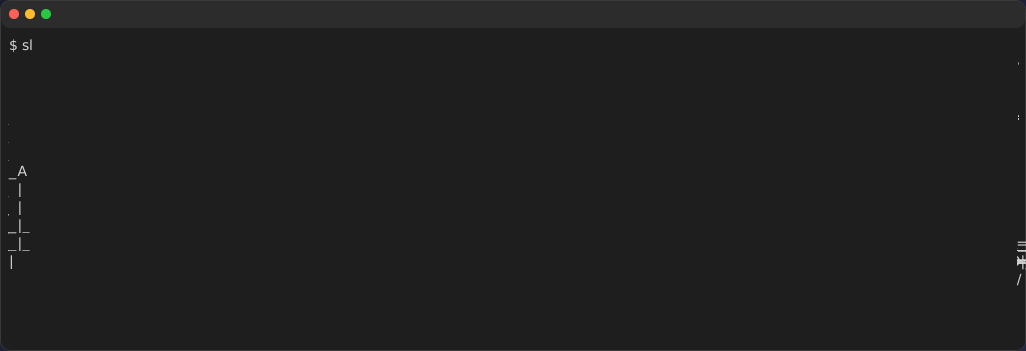
cmatrix
Section titled “cmatrix”console2svg capture -w 100 -h 24 -c -d macos-pc -v --timeout 5 -- cmatrix -ab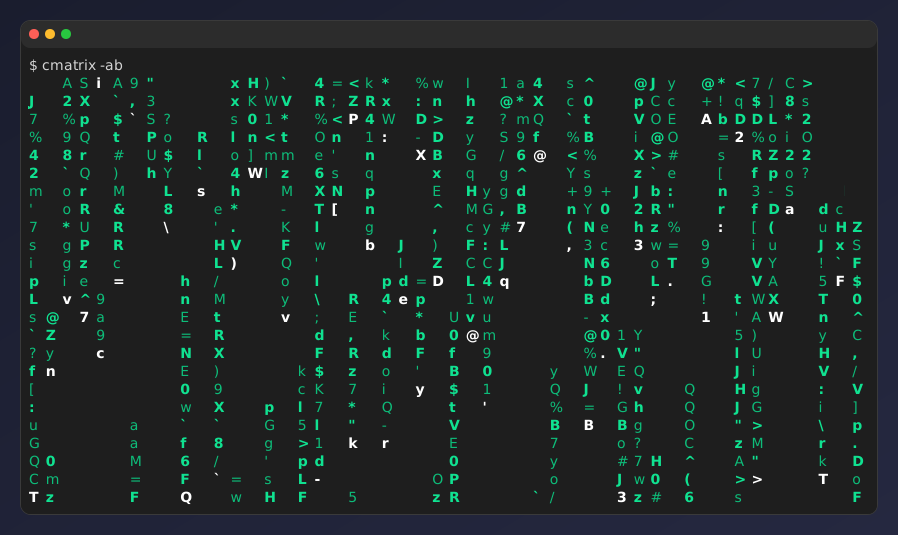
nyancat
Section titled “nyancat”console2svg capture -w 160 -h 28 -c -d -v --timeout 5 --sleep 0.5 -- nyancat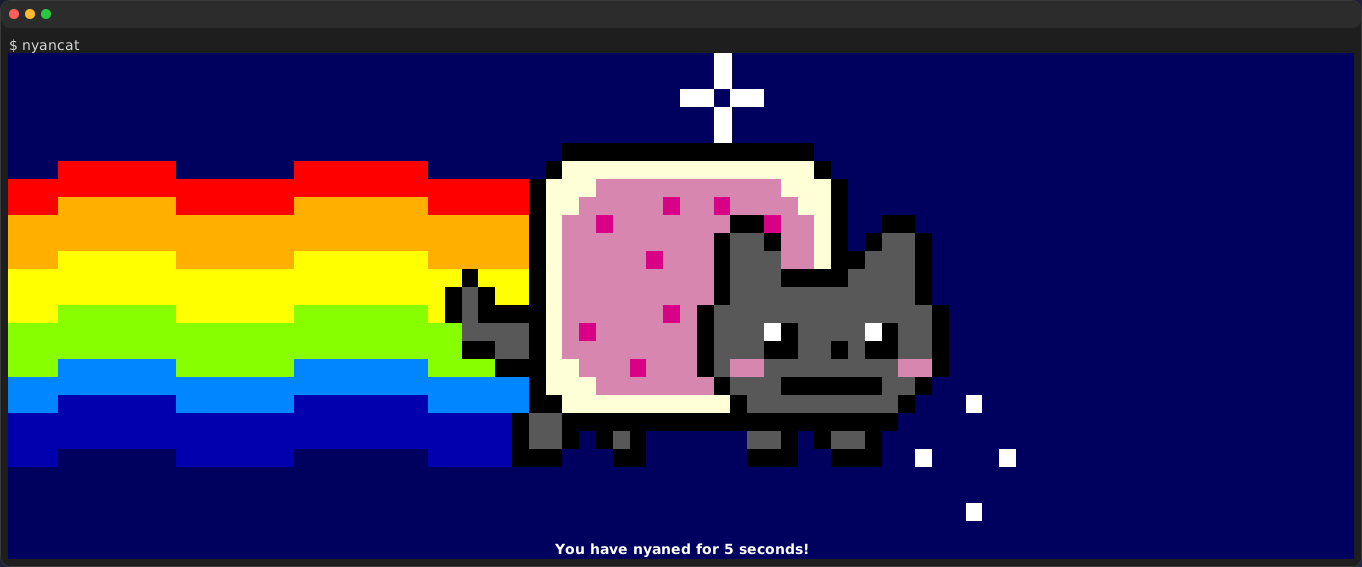
通过播放预先准备好的重放文件,即使在 CI 环境中也能复现相同输出。
console2svg replay ./replay.json -w 80 -h 20 -v -c -d macos -- bash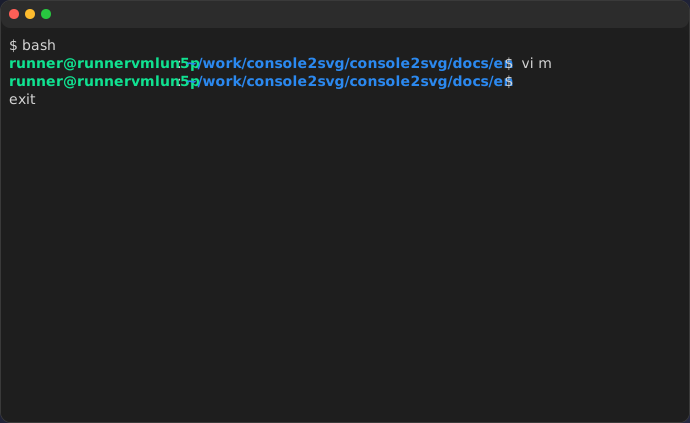
按 F9 键开始录制,再按一次 F9 键结束录制。
console2svg interactive -d macos -o ./captures/output.svg
无论是内置主题还是自定义主题,都可以指定喜欢的主题。
console2svg capture -w 100 -h 24 -c -d macos -t nord --timeout 2 -- cmatrix -ab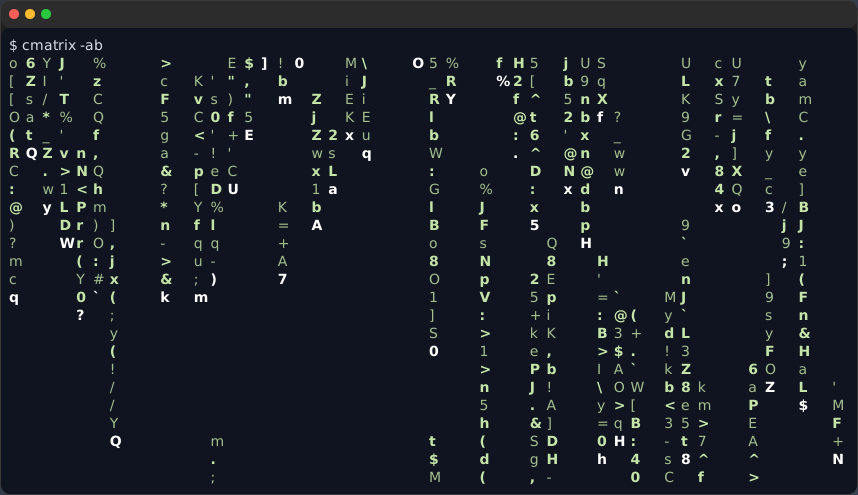
cyberpunk-pc
Section titled “cyberpunk-pc”console2svg capture -w 100 -h 24 -c -t cyberpunk-pc --timeout 2 -- cmatrix -ab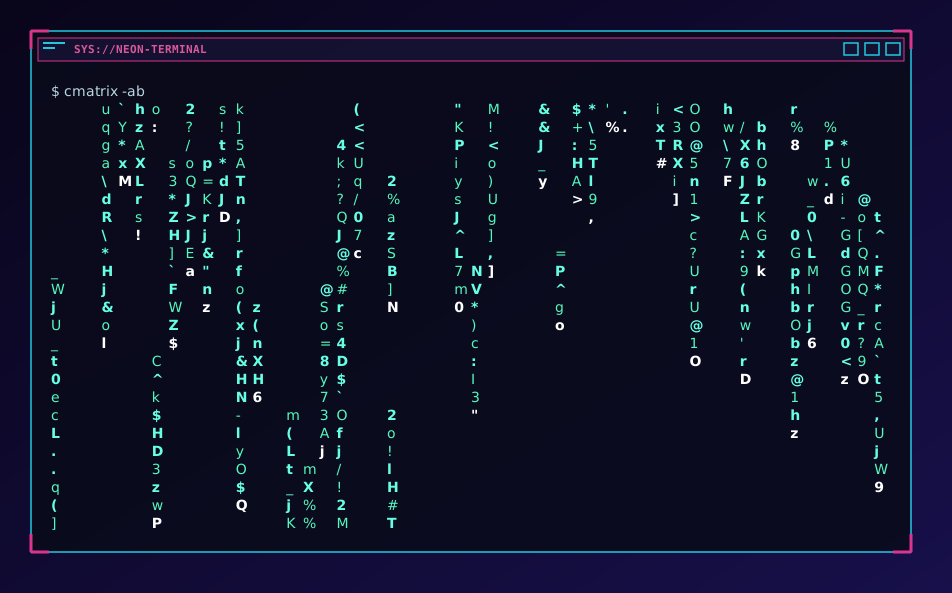
机密信息遮盖
Section titled “机密信息遮盖”cat <<EOF > .envCURRENT_DIRECTORY=$(pwd)APP_SECRET_TOKEN=1234567890thankyouHTTP_PROXY=http://user:password@10.0.0.1:8080CONNECTION_STRING=Server=localhost;Database=myDataBase;User Id=myUsername;Password=myPassword;MYSQL_CONNECTION_URL=mysql://myUsername:myPassword@localhost:3306/myDatabaseGIT_USERNAME=hidden_truth_nameGIT_EMAIL_ADDRESS=hidden_truth_name@example.comCOMMON_HASH=0123456789abcdef0123456789abcdefSECRET_HASH=fedcba9876543210fedcba9876543210EOF
console2svg capture -80 -h 14 -d macos-pc -t github-dark -- cat .env