ウインドウ枠・背景の指定
ウインドウの装飾(タイトルバーなど)や背景を設定することで、スクリーンショットの見た目を整えることができます。
ウインドウ枠スタイル
Section titled “ウインドウ枠スタイル”ウインドウ枠は -d または --window <style> オプションで指定します。値なしで -d のみを指定した場合は macos が適用されます。
# ドロップシャドウ付きmacOS風スタイルconsole2svg capture -d macos-pc -- fastfetch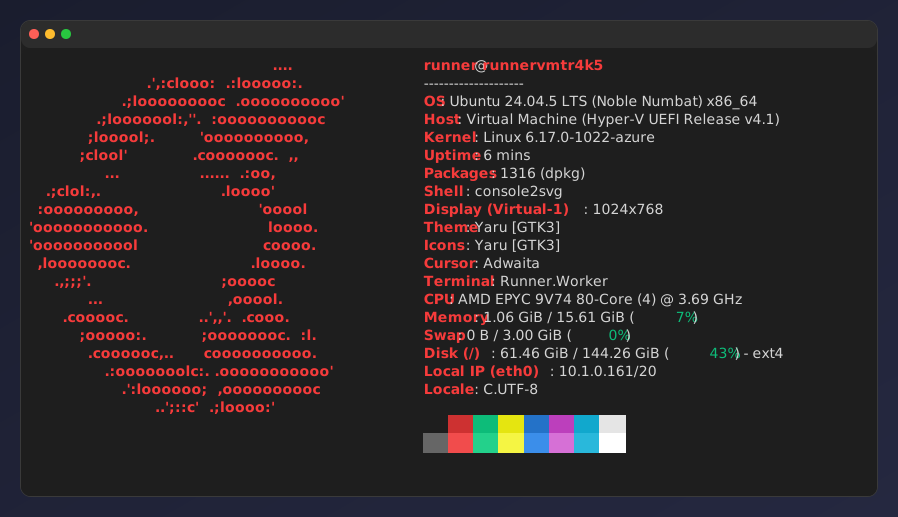
組み込みのウインドウ枠と表示例は、組み込みウインドウ枠 にまとめています。
--background オプションで背景色や背景画像を設定できます。
カラーコード(HEX)を指定します。
console2svg capture -h 10 -c -d macos-pc --opacity 0.85 \ --background "#003060" -- dotnet --version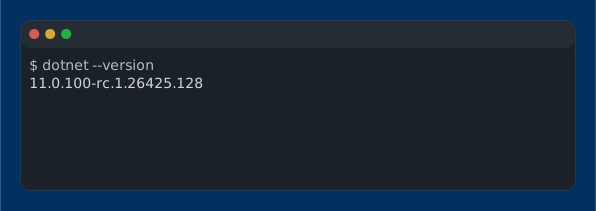
グラデーション
Section titled “グラデーション”複数のカラーコードを指定します。
console2svg capture -h 10 -c -d macos-pc --opacity 0.85 \ --background "#004060" "#0080c0" -- dotnet --version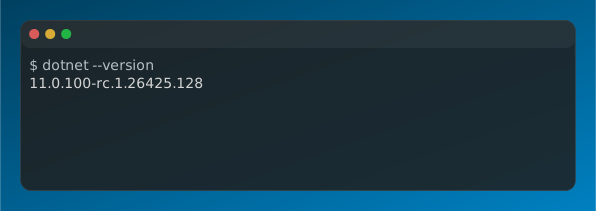
画像ファイルパスを指定して、デスクトップ背景風に表示できます。
console2svg capture -h 10 -c -d macos-pc --opacity 0.85 \ --background image.png -- dotnet --version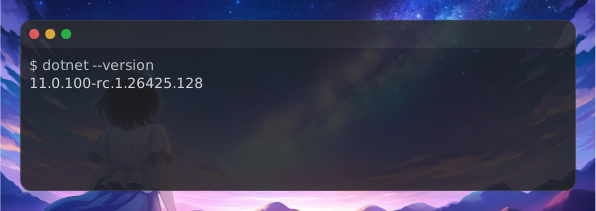
余白と不透明度
Section titled “余白と不透明度”--margin <px>: ウインドウ枠の外側のマージン。--padding <px>: ターミナル内側(文字と枠の間)のパディング。--pc-padding <px>:macos-pcやwindows-pcの外側余白サイズ。--opacity <0.0〜1.0>: 背景の不透明度(例:--opacity 0.9)。