Specify window frames and backgrounds
You can refine screenshot appearance by configuring window decoration (such as title bars) and backgrounds.
Window frame style
Section titled “Window frame style”Specify the window frame with the -d or --window <style> option. If you specify only -d without a value, macos is applied.
# macOS-style frame with a drop shadowconsole2svg capture -d macos-pc -- fastfetch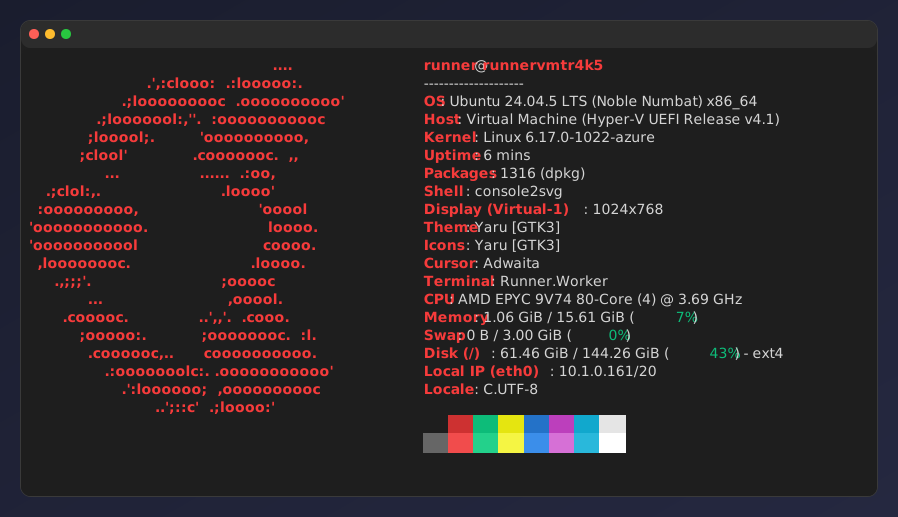
Built-in window frames and display examples are collected in Built-in window frames.
Specifying a background
Section titled “Specifying a background”You can set a background color or background image with the --background option.
Solid-color background
Section titled “Solid-color background”Specify a color code (HEX).
console2svg capture -h 10 -c -d macos-pc --opacity 0.85 \ --background "#003060" -- dotnet --version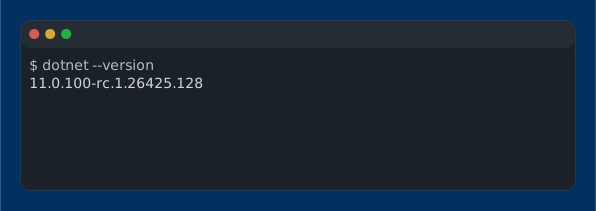
Gradient
Section titled “Gradient”Specify multiple color codes.
console2svg capture -h 10 -c -d macos-pc --opacity 0.85 \ --background "#004060" "#0080c0" -- dotnet --version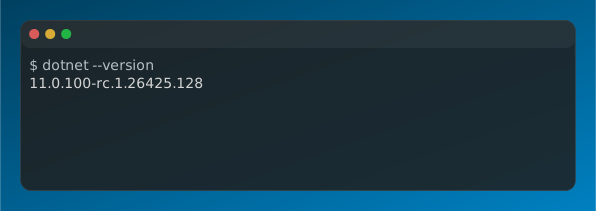
Image background
Section titled “Image background”Specify an image file path to display it like a desktop background.
console2svg capture -h 10 -c -d macos-pc --opacity 0.85 \ --background image.png -- dotnet --version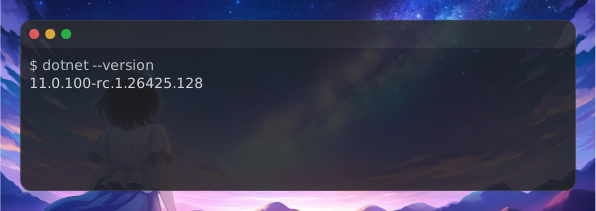
Margins and opacity
Section titled “Margins and opacity”--margin <px>: Margin outside the window frame.--padding <px>: Padding inside the terminal (between text and frame).--pc-padding <px>: Outside spacing size formacos-pcandwindows-pc.--opacity <0.0〜1.0>: Background opacity (example:--opacity 0.9).